Chord Notator Tutorial — Part 2: Subdivisions and Measure Management
In Part 1 we built an 8-bar chart from scratch using the chord palette. Every measure had exactly one chord. That works for a lot of music — but real songs constantly break that rule.
The bridge of Autumn Leaves moves twice as fast. The turnaround of a 12-bar blues packs three chords into two bars. A ii–V–I resolution lands on the tonic in the last beat. To write any of these you need subdivisions — multiple chords sharing the same measure.
You also need to be able to shape the grid itself: add measures in the middle of a chart, remove one that was placed by mistake, or insert an extra bar at the end.
This guide covers both.
What Is a Subdivision?
A measure subdivision is a split: instead of one chord filling the entire bar, you divide the space into 2, 3, or 4 equal slots, each holding its own chord.
In a 4/4 context, the most common subdivisions are:
| Slots | Duration per slot | Typical use case |
|---|---|---|
| 1 | 4 beats | Ballad, slow harmonic rhythm |
| 2 | 2 beats each | ii–V, fast changes, turnarounds |
| 3 | ~1.3 beats each | Waltz feel over a bar, some Latin patterns |
| 4 | 1 beat each | Fast bebop, dense chord-scale passages |
The subdivision is a visual and structural choice. It does not affect playback tempo — it tells you and your band how many chords to play per bar.
Setting the Subdivision
In Edition Mode, hover over any measure. Four small round buttons appear in the top-right corner of the measure header: 1 · 2 · 3 · 4.
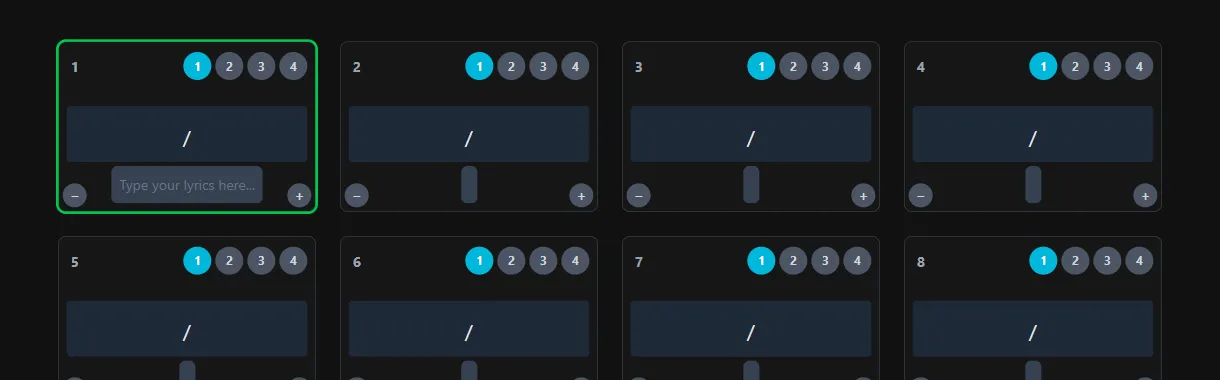
The button matching the current subdivision is highlighted in cyan. By default, every new measure starts at 1.
Click 2 — the measure splits into two equal cells. Click the left cell and enter the first chord; click the right cell for the second. The measure displays both chords side by side, separated by a diagonal line.
Example: To write the classic ii–V pattern
Dm7 | G7as two chords in one bar, set the subdivision to 2, enterDm7in the left slot andG7in the right slot.
Click 3 or 4 to go further. You can change the subdivision at any time — existing chords are preserved up to the new slot count, extra slots are cleared.
In Practice: The Bridge of Autumn Leaves
The bridge accelerates the harmonic rhythm: two chords per bar instead of one. Here are the first four measures of the bridge in Bb major:
| Measure | Slot 1 | Slot 2 |
|---|---|---|
| 1 | Am7♭5 | D7 |
| 2 | Gm7 | C7 |
| 3 | Fm7 | B♭7 |
| 4 | E♭maj7 | — |
Set each of those four measures to subdivision 2. Enter the chords in order. The grid shows the dual-chord layout with clean diagonal dividers — the same visual shorthand used in printed lead sheets.
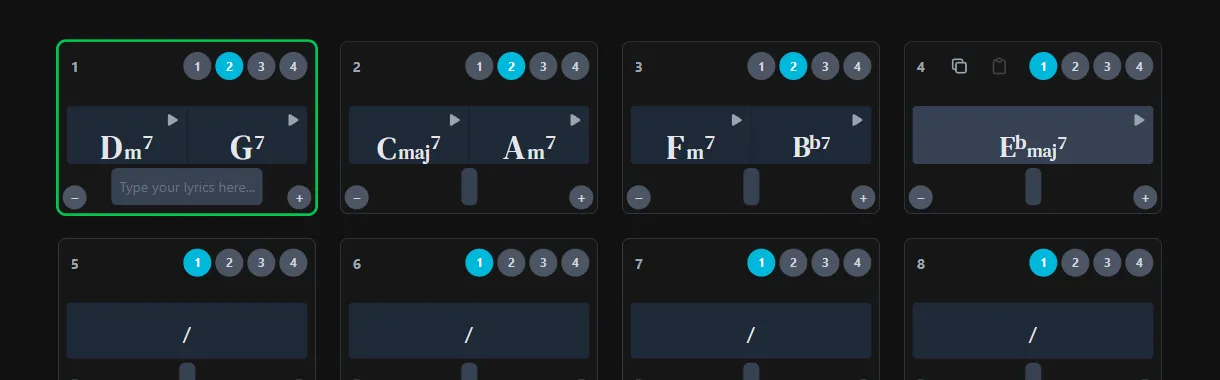
Measure 4 only needs one chord (E♭maj7 lasts a full bar). Set it to subdivision 1 — or leave slot 2 empty if you prefer to keep the visual alignment consistent.
Adding Measures
Songs rarely arrive pre-fitted to 8 bars. You might finish the A section and realize you need 4 more bars for a tag, or you copy a chart and need to insert a 2-bar intro.
To add measures, look at the bottom-right corner of any measure. A small + button sits there in Edition Mode.
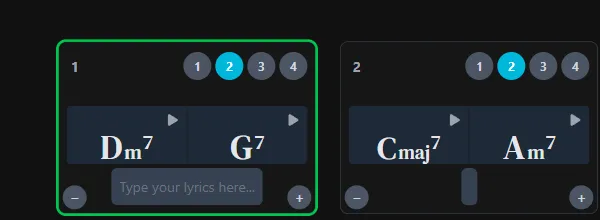
Click + — a dialog opens asking how many measures to insert. The new measures appear immediately after the one you clicked, pushing everything else down the grid.
Tip: To add measures at the very end of a chart, click
+on the last measure.
Removing Measures
The − button lives in the bottom-left corner of each measure. Click it and a confirmation dialog appears asking you to confirm the deletion. Confirm, and the measure is gone — the rest of the chart closes up around the gap.
When to delete: When you drafted a 16-bar form and realize the B section only needs 8 bars. Or when you placed a blank measure by accident while roughing out a structure.
Putting It Together: A 32-Bar AABA Form
A standard 32-bar jazz form has four 8-bar sections: A–A–B–A. Starting from a clean chart:
- Write the A section (8 measures) with the main changes
- Click
+on measure 8 and insert 8 more — now you have 16 bars - Copy the first A into the second A (copy/paste works measure by measure)
- Click
+on measure 16 and insert 8 bars for the B section (bridge) - Set the bridge measures to subdivision 2 where the harmony moves fast
- Insert a final 8-bar A section at the end
The full form is in place in under 5 minutes.
→ Try it now on chordnotator.com
What’s Next
You now control the structure of any chart — how many chords per bar, how many bars total. In Part 3 we bring in the lyrics layer: how to add words under the chords, how the text scales automatically, and how the whole chart looks when you switch to Gig Mode for a performance.
→ Part 3: Lyrics and Gig Mode — coming soon